THE BLOG
Welcome to our blog. Check out our latest blog posts with lists, tips and tricks, how-tos, and more about digital marketing, social media, website design and more. Have a question or want to learn more about something we’ve mentioned? Give us a call at (928) 362-0307 or send us a quick message to get started on your free consultation.
THE BLOG
Welcome to our blog. Check out our latest blog posts with lists, tips and tricks, how-tos, and more about digital marketing, social media, website design and more. Have a question or want to learn more about something we’ve mentioned? Give us a call at (928) 362-0307 or send us a quick message to get started on your free consultation.
Unleash Your Creativity: 10 Tips for Writing Catchy Blog Post Titles
Unlock the Power of Your Words: Discover 10 Secrets to Crafting Irresistible Blog Post Titles Image courtesy of cottonbro studio via Pexels Table of Contents The Power of Numbers Use Action Verbs Pose Thought-Provoking Questions Be Specific and Clear Embrace the...
Simple Ways to Make Your Emails More Effective
Email marketing has been around for years, but it's still one of the best ways to connect with your audience. We're going to show you how to create emails that work.Keep It Simple. The most important thing to remember when creating an email campaign is to keep it...
Social Media Marketing Tips for Small Businesses
Learn how to leverage social media platforms like Facebook, Twitter, Instagram, Pinterest, YouTube, LinkedIn, Google+, Snapchat, and more.Social media marketing is an effective way to reach new audiences, build brand awareness, and drive traffic to your website. This...
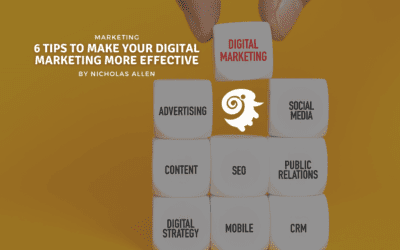
6 Tips to Make Your Digital Marketing More Effective
Ready to step up your marketing game? We've compiled a list of six tips on how to make your digital marketing more effective.Digital marketing typically includes any form of advertising that uses the internet, social media, mobile devices, and other online platforms...

How To Build Your Sales Pipeline
Are you struggling to keep your sales pipeline full? Have you tried using search engine optimization to generate leads for your business?

The 7 Keys to a Successful SEO Strategy
7 Keys to a Successful SEO Strategy that gets Traffic Optimization is defined as the process or method of making something as fully perfect, functional or effective as possible by Merriam Webster. There is no such thing as a 'finished' website, but the process of...
A Quick Guide to Digital Marketing for Real Estate Agents in 2019
Digital Marketing for Real Estate Agents that get results. As a successful real estate agent or broker, you're focused on caring for your current clients and building new relationships. To take your real estate business to the next level you need to look...

Digital Marketing for Automotive Sales Professionals
Driving with Digital MarketingDigital marketing, social media, and the Internet have changed the retail industry worldwide. Forever. Most importantly it's given the consumer the ability to research and shop for the exact product they want exactly when they...

6 WordPress Plugins Every Restaurant Website Needs
Essential WordPress Plugins for Restaurant Websites A great website will need most of these items, but a great restaurant website has some very specific needs to ensure they help their customers make some important decisions. Every hungry website visitor...

WordPress? 15 Reasons You Should Be Using It
Take a look at these 15 Reasons why you should work with WordPress WordPress content management system (CMS) is the most popular website management tool out there. More than 29% of the world's websites published are using WordPress with over 500 new...
OPTIMIZING DIGITAL MARKETING STRATEGIES SINCE 2002
Sublime Dzine Digital Design is a full-service digital marketing agency. Gain more visitors, engage them with your story, and convert them into leads with Sublime Dzine digital marketing services. Click below or call (928) 362-0307 to start converting today.